How Policy Monitoring works
Overview
Policy Monitoring collects policy changes from Medicare, state Medicaid programs and commercial payers into one feed. Each change has a short summary written for the front office, the plans and states it applies to, the codes it mentions, an impact level and the effective date.
You filter the feed to what you follow, save those filters as a search, and get an email when something new matches. The product has six tabs: Feed, Saved searches, Saved policies, CMS rules, Medicaid and Settings.
Getting started
- The first time you open the Feed it asks for your practice profile: the states you see patients in, your specialties and your payers. The Feed then opens with these applied and your digest email uses them. You can change them later in Settings.
- Skim the high impact changes first. Tick High under Impact in the filter rail to see only those.
- Narrow the feed with the filter rail (payer, state, plan type, specialty, change type), then choose Save search to keep those filters with an email alert.
- Open any change to read the summary, the steps to take and the original notice. Save the ones you want to come back to.
The Feed
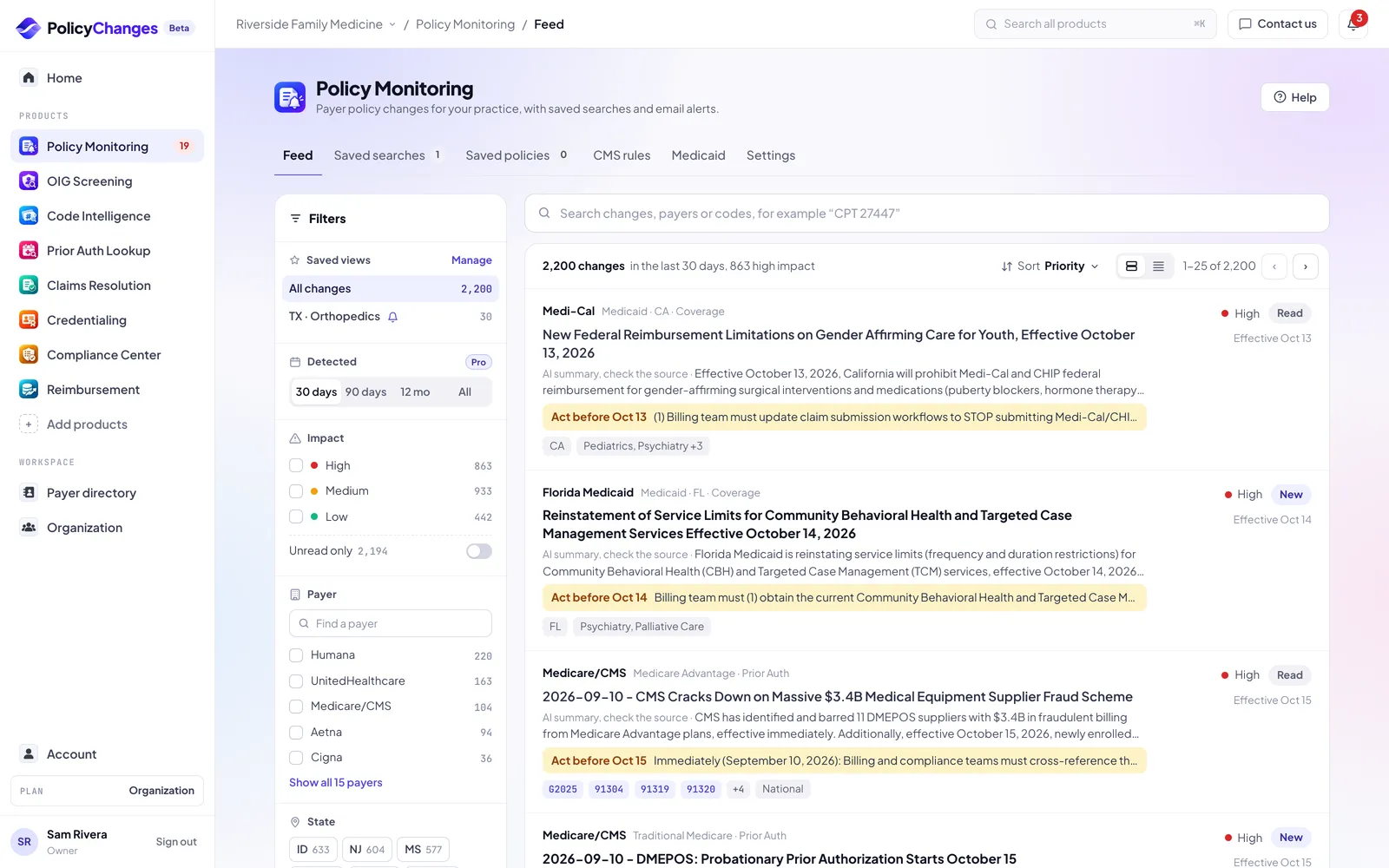
The line above the list tells you how many changes match and for what date range. When the Feed is showing your practice profile it says so, with the states, specialties and payers it uses and a link to edit them.
The search, the filters, the date range and the saved search you pick are kept in the address bar, so you can reload, go back or send the link to a colleague and get the same view.
- Search
- Type words, a payer name or a code, for example 27447. A search for codes only, such as 27447 or modifier RT, looks across all history and lists the changes that name the code first, and the line above the list says how many fall in the date range you picked. Short words and modifiers match whole words only. Other searches are ordered by how closely they match, and a search with no close match shows nothing. When you ask whether a payer needs prior auth for a code, the answer links to Prior Auth Lookup.
- Saved searches
- The top of the filter rail. Switch between All changes, My practice and any search you saved. Save these filters as a search keeps the current filters.
- Filters
- The rail on the left (the Filters button on a phone): Found, Impact and Unread only, Payer, State, Plan type, Specialty and Change type, plus Muted keywords. Payer and State have a find box. Active filters appear as chips above the list that you can remove one by one, or all at once with Clear all.
- Found
- When PolicyChanges found the change: the last 30 or 90 days, the last 12 months or all time.
- Sort
- Priority, Recently published, Effective date or Recently found. Hover the Sort control to see how the current order works.
- Comfortable or Compact
- Comfortable shows the summary, the first step to take, codes, states and specialties. Compact shows one line per change with the payer, title, impact, effective date and status.
Reading a policy change
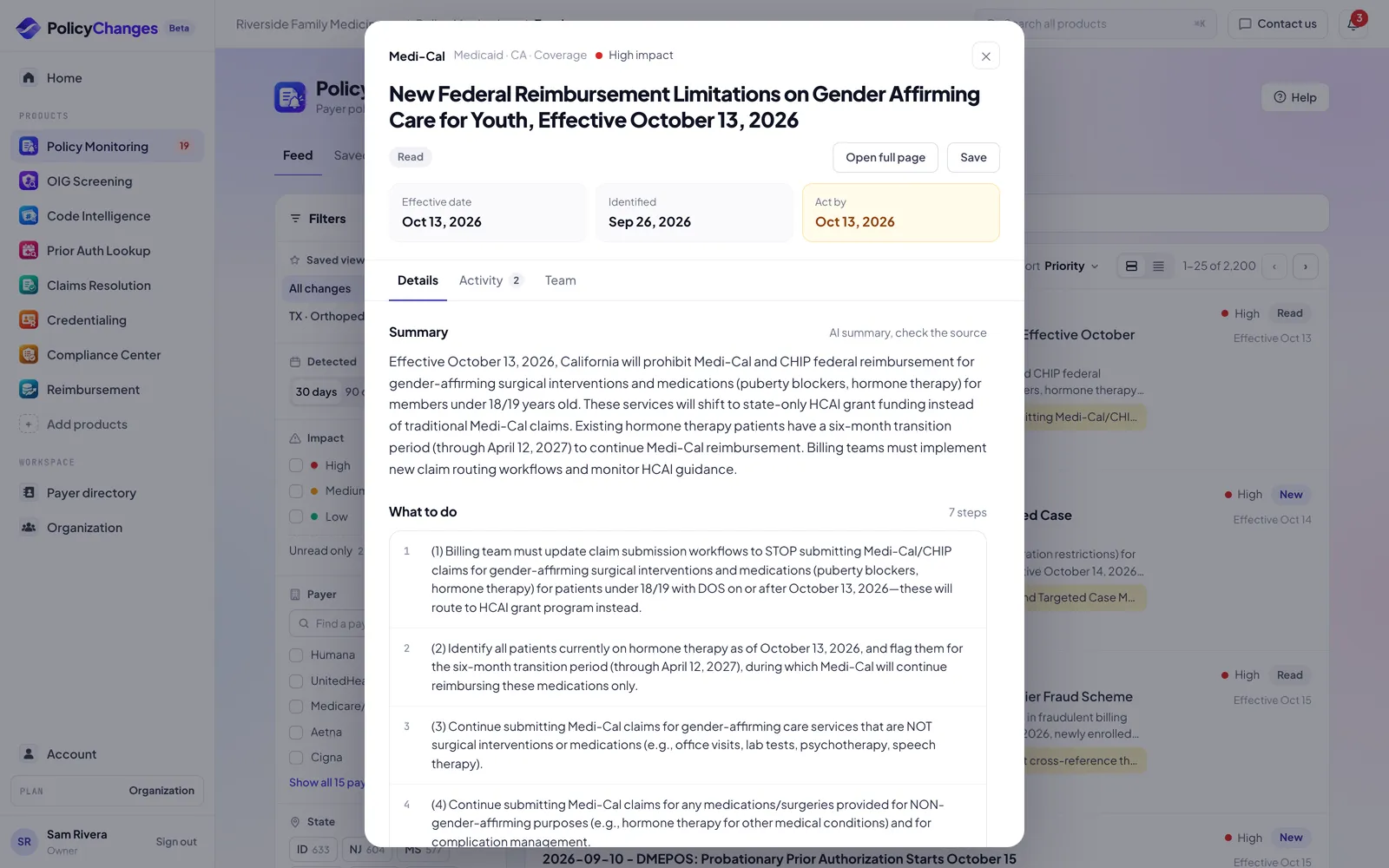
Click a change to open it over the feed. The top shows the payer, plans, states and change type, then three facts: Effective date, Found on (the day we found it) and Act by, the next deadline that has not passed yet.
Below that you get the summary, What to do with numbered steps written for your billing team, what happens If missed, the Codes mentioned and a link to View original, the payer's own notice. Related policies lists other changes on the same topic.
Use Save to keep the change in Saved policies, and Open full page to read it on its own page in the app.
Saved searches and alerts
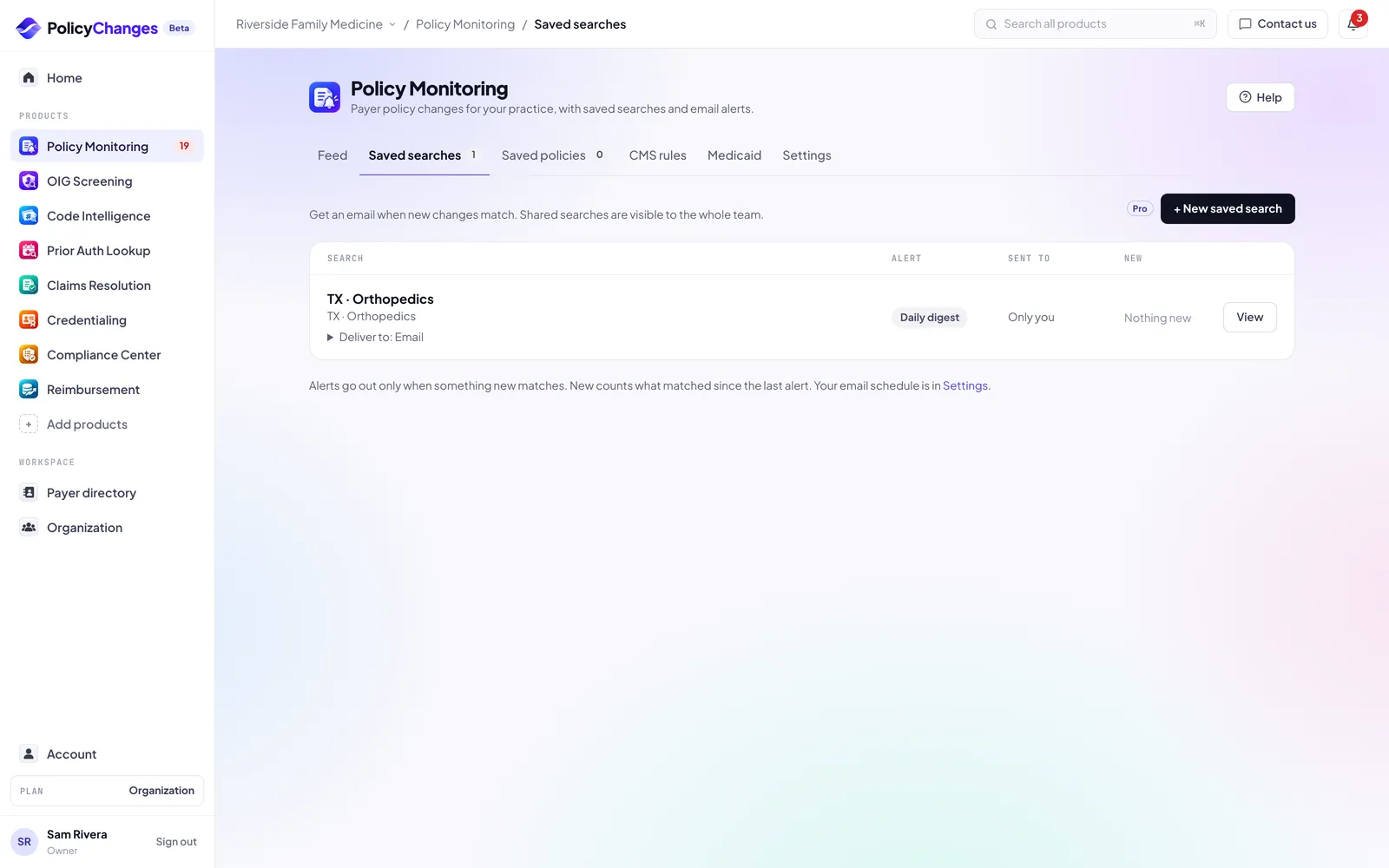
Saved searches lists every search you saved, its alert, who it is sent to (Only you or Whole team) and how many changes matched since the last alert. Click View to open the feed with that search applied. The menu next to it lets you edit the filters, rename the search, turn its alert on or off, or delete it.
Alerts go out only when something new matches. Every alerting search uses the one email schedule you set in Settings.
Slack and Microsoft Teams alerts
On Basic and Pro, a saved search can post its alerts to Slack or Microsoft Teams channels as well as, or instead of, email. Each run sends one message per channel with the top matches (title, payer, impact, effective date, act by date and a short summary) and a button to open each change in PolicyChanges. When more changes match, the message says how many more and links to your feed.
Messages only carry public policy information from payers. No patient information is ever sent. The webhook URL is stored encrypted and is never shown again after you save it; Settings shows only its last characters.
- Slack: in Slack, open the App Directory, create an app from scratch (or use an existing internal app), turn on Incoming Webhooks, click Add New Webhook to Workspace and pick the channel. Copy the URL that starts with https://hooks.slack.com/services/.
- Microsoft Teams: in the channel, open Workflows (the three dots next to the channel name, then Workflows), choose the template "Post to a channel when a webhook request is received", pick the team and channel, and copy the URL it shows at the end. The old Office 365 connector webhooks no longer work.
- In Policy Monitoring, open Settings, go to Channels, choose Slack or Microsoft Teams, give the channel a name, paste the URL and click Add channel.
- Click Send test message and check that it shows up in the channel.
- Open Saved searches, expand Deliver to under a search with its alert on, and tick the channels it should post to. Untick Email if you only want the channel.
Saved policies
Open a change in the feed and choose Save, or click the Save icon on a feed row. Saved changes stay in the Saved policies tab until you remove them.
CMS rules
CMS rules lists CMS proposed and final rules from the Federal Register, such as the yearly Physician Fee Schedule, with the comment deadline of each proposed rule. Rules still open for comment are listed first.
Pick a source (Everything, Proposed rules, Final rules, Transmittals or MLN articles) and a program to narrow the list. Email me new transmittals and MLN articles opens the save search flow with those two sources picked.
Medicaid
The Medicaid tab has one page per state. Your profile states come first, then every state in alphabetical order. Each state page has its own address, so you can bookmark it.
A state page lists the Medicaid policy changes from the state agency and its managed care plans for the last 12 months, billing code, prior auth, payment and coverage changes first. When your profile has specialties, the list shows those plus changes for every specialty, and Show all specialties lifts that limit. Below it are the state's Medicaid prior auth lists, with the ones we check and the ones to open on the payer site, and the Medicaid payer contacts we have.
Settings
- Practice profile
- Specialties, payers and states. They filter your digest email and the Feed opens with them applied. Saved searches keep their own filters.
- Email schedule
- Daily (every morning) or Weekly (Monday). One schedule for every alerting search, not set per search. Free and paid plans both choose Daily or Weekly.
- High-impact override
- Emails high impact changes the same day they are found, even on a weekly schedule.
- Pause all alerts
- Stops every email and channel post without changing your saved searches.
- Channels
- Slack and Microsoft Teams channels that can receive your saved search alerts. Basic and Pro. Each channel has Send test message and Delete. A channel that keeps rejecting messages is turned off and shows the error until you fix it and send a test message.
- Muted topics
- Hide changes by keyword or by an entire change type, such as Billing Codes or Administrative. A keyword matches whole words or a whole phrase in the title, summary, action text, change type or specialty tags, in any case: muting "government" hides "Government Program Members" but not "governmental". Muted changes stay out of the feed, its counts, saved search alerts, email digests and Home. The Filters rail says how many are hidden and lets you show them.
How to read results
- Impact
- High, Medium or Low. Our estimate of how much the change can affect payment or daily work. Start with High: it usually means a new requirement or a coverage change.
- Effective date
- The date the payer says the change starts. Not stated means the notice gives no date. The line under it says how far away it is, and turns amber when it is close.
- Found on and published
- Found on is the day PolicyChanges found the change. Published is the date on the payer notice, or the day we found it when the payer gives none. When a payer posts an old document, the row shows both dates.
- New and Read
- New means you have not opened the change yet.
- Sources
- Every change links to the original notice. The summary is ours, the original is the payer's, and the original always wins.
What each plan includes
- Free
- Everything in Policy Monitoring with no usage limits: the full change history, unlimited saved searches, daily or weekly email alerts, AI search, AI answers and the assistant.
- Basic and Pro
- Everything in Free, plus immediate alerts and Slack and Microsoft Teams channels.
Data sources and freshness
We monitor payer policy pages, bulletins and provider newsletters from more than 100 payers, plus Medicare and state Medicaid publications. New documents are collected and analyzed every day.
A change usually shows up within a day of the payer publishing it. Payers sometimes post late or revise a notice after the fact, so the effective date on the original notice is the one that counts.
Deadlines in your calendar
Account, Calendar gives you a private calendar link for Google Calendar, Outlook or Apple Calendar. It lists the deadlines of every product that is on for you: credential expirations and CAQH re-attestation, enrollment follow-ups, Compliance Center program and incident notice deadlines, the monthly OIG screening date, and act by dates for high impact payer changes in your scope.
Events never include patient details or claim numbers, and free text you typed (task names, risk and action titles) is not copied. Anyone with the link can read the event titles, so treat it like a password: Get a new link or Turn off in Account, Calendar stops the old one right away.
FAQ
- Why do I see changes for payers I did not pick?
- The Feed applies your practice profile, but a saved search or All changes uses its own filters. Check which one is picked under Saved searches in the filter rail.
- Why did I not get an email?
- Alerts only go out when something new matches, on the schedule set in Settings. Also check that Pause all alerts is off, that the search has its alert on and that Email is ticked under Deliver to.
- Can my team share a search?
- Yes. Shared searches are visible to the whole team and show Whole team in the Sent to column.
- The summary and the original disagree. Which is right?
- The original notice. Tell us about the difference so we can fix the summary.
Disclaimer
PolicyChanges aggregates information that payers and government agencies publish. We summarize it and link every answer to its source, but we do not create the rules and we can miss or misread a change.
Nothing here is legal, medical, coding or billing advice, and nothing here is a guarantee of coverage or payment. Your patient's specific plan, your contract and the payer's current rules decide the outcome.
Always verify with the payer before you act, and record the reference number or the source you relied on.
Features, limits and data coverage can change, and we welcome reports of anything that looks wrong.